Emulator Guide
Controllers For An Android Emulator: Touchscreen, Bluetooth, And TV
Set up controllers for an Android game emulator: touchscreen overlays, Bluetooth gamepads, and Android TV D-pad layouts, with configuration tips.
Written by the Fulldive product engineering team, based on direct inspection of the repositories listed below.
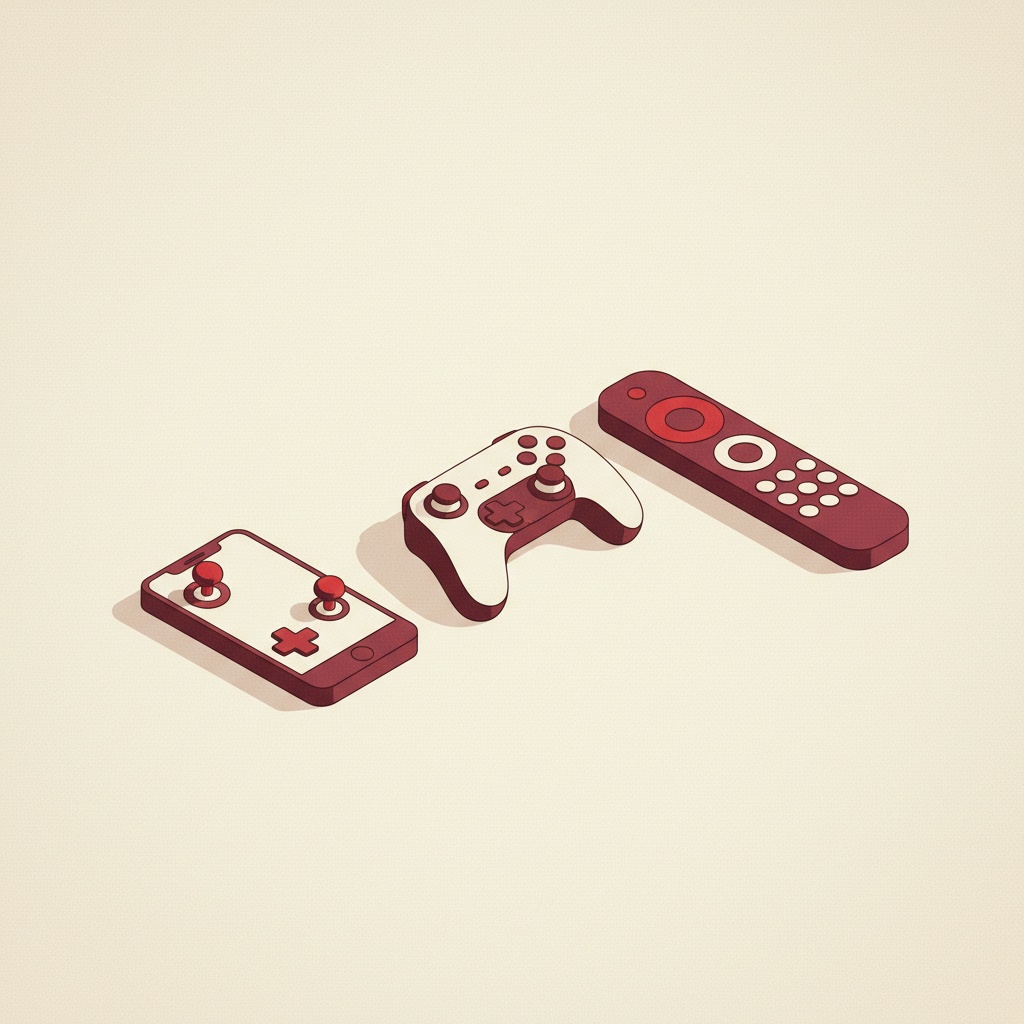
An emulator with controller support Android needs to handle three very different input modes without forcing you to reconfigure every time you change devices: an on-screen overlay on a phone, a Bluetooth gamepad on a tablet, and a D-pad on an Android TV box. This post walks through how to set each one up on Fulldive’s One Emulator for Game Consoles and the Pro package, and what to check on any Android TV game emulator or emulator with Bluetooth controller support before you install.
The three input modes, and why they clash
Every Android emulator is fighting the same problem. Phones want virtual buttons. Tablets want a Bluetooth gamepad. TV boxes want D-pad focus for menus and a gamepad for gameplay. If the emulator treats these as one input system, something will feel off in at least two of them.
Fulldive’s emulator moved the gamepad layout and the Game Activity screen to Jetpack Compose (commits 47c9c8c3 and def0215f). That was partly a modernization project and partly about consolidating the three input modes under a single, consistent UI pipeline — one that can render a touchscreen overlay on a phone, respond to a gamepad HID event on a tablet, and accept D-pad focus on TV. The Compose game menu landed shortly after (commit 2372e240), and an animated game list update (commit 4d836cb4) tightened the TV browsing feel.
1. Touchscreen controls
On a phone, you will use the on-screen overlay most of the time. A good overlay should let you:
- Move buttons to match your thumb reach.
- Resize the D-pad and buttons independently.
- Adjust opacity so the buttons don’t fight the game art.
- Enable haptic feedback for directional input.
Tips:
- Put the D-pad slightly higher than centered; your thumb rests there naturally.
- Shrink L/R buttons to roughly 70% of face-button size — they’re used less and you want face buttons big.
- If a game is reaction-heavy, turn haptics off. The delay can matter.
2. Bluetooth gamepads
On a tablet or a phone in a clip mount, a Bluetooth gamepad is the better experience. Pairing goes through normal Android Bluetooth settings, and the emulator reads gamepad input via the standard Android KeyEvent and MotionEvent systems; with the Game Activity migration to Compose, input routing is cleaner than it used to be on older Android emulator builds.
What to check when picking a pad:
- Android compatibility. Xbox controllers over Bluetooth LE (newer models) and most 8BitDo, Razer Kishi, GameSir, and Backbone controllers work with modern Android. “Made for iPhone” pads usually don’t.
- Button layout. The emulator maps physical buttons through Android’s generic gamepad layer. You may want to remap A/B/X/Y if the game expects the Nintendo layout and your pad uses the Xbox one.
- Latency. Wired USB-C almost always beats Bluetooth. If you care about fighting games or anything frame-tight, go wired.
On the emulator side, check that:
- The pad is detected in the input settings screen.
- Every button and both sticks show input when pressed.
- The home/system button doesn’t exit the game by accident.
3. Android TV
Using an emulator on Android TV is great — big screen, comfortable controller, no phone in hand. But TV platforms need attention:
- D-pad focus everywhere. Menus must be navigable with a D-pad alone, because TV remotes may not have a full gamepad. The animated game list work in commit
4d836cb4is part of that UX. - Safe area. TVs crop the edges on some sets; layouts should keep touchable/focusable items inside the safe zone.
- Two input sources. The TV remote controls menus, a paired gamepad plays games. Both should work without toggling modes.
Setup tips for TV:
- Use a real gamepad, not just the TV remote, for gameplay.
- Connect the pad over Bluetooth from Android TV settings before launching the emulator.
- If your TV box has limited RAM, close background apps — emulator cores are memory-sensitive.
Mapping hiccups
Common issues and what to try:
- Analog stick behaves like a D-pad. Some cores translate stick to direction keys; check the input mapping screen for a separate axis option.
- A and B swapped. Japanese systems tend to use “A-right, B-bottom”; Xbox/Western pads use the opposite. Remap in the emulator, not at the OS level.
- Trigger as button vs axis. Xbox triggers are analog axes on Android; the emulator should expose them as digital L2/R2 when needed.
- Bluetooth dropouts. Usually Android power-saving. Exclude the emulator from battery optimization.
Legal and compatibility notes
Controller behavior varies by device, Android version, emulator core, and controller firmware. Fulldive’s emulator apps do not include copyrighted games or ROM downloads; users are expected to supply legally obtained game files that are compatible with the app. Some older or unusual gamepads may not identify correctly to Android and may need manual key remapping. We do not claim universal gamepad or TV compatibility.
Related reading
- Android game console emulator features
- Save states vs in-game saves on Android emulators
- Organize supported game files for an Android emulator
- Free vs Pro Android emulator
- Related: Mobile VR headset-specific work in Fulldive VR
Sources
- Internal repository evidence brief:
website/docs/app-evolution/one-emulator-fullroid.md. - Android Developers — Game Activity and input events for games.
- Jetpack Compose documentation.
- Lemuroid and Beebom Android emulator roundup for controller-support category language.
Last updated: 2026-04-16. Commit hashes and version numbers are drawn from Fulldive repositories inspected on 2026-04-13.